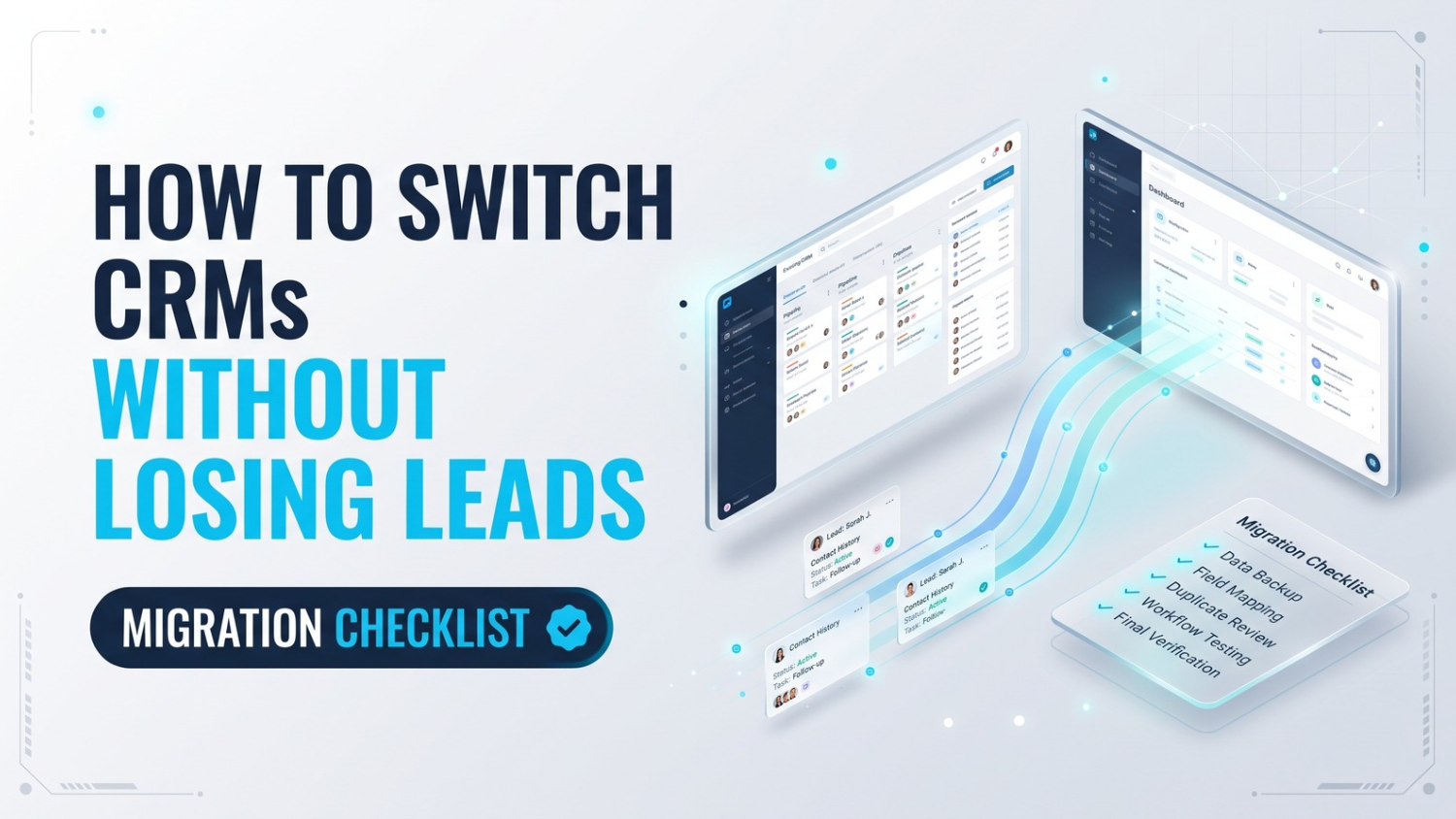
Switching CRMs without losing leads requires more than importing contacts. Medicare agents and agencies should inventory their records, confirm export capabilities, map fields, preserve consent and opt-out information, and verify that attachments and communication history transfer correctly. Import opt-outs before activating outreach automations, test the migration with a small batch, and keep the previous system accessible until applicable retention requirements have been reviewed. A CRM migration can help organize records, but it does not independently establish compliance with CMS, TCPA/FCC, carrier, state, or privacy requirements.
- Plan your CRM migration for a slower period outside AEP.
- Inventory contacts, notes, SOAs, consent records, opt-outs, recordings, and automations.
- Confirm export capabilities before canceling your current CRM.
- Preserve consent evidence and contact restrictions.
- Import opt-outs before enabling automated calls, texts, or emails.
- Test the migration with a small batch and verify attachments.
- Review privacy, security, and applicable BAA requirements.
- Keep the old system accessible until retention obligations are confirmed.
- Train your team and conduct a post-migration review.
How to Switch CRMs Without Losing Leads: A Medicare Agent's Migration Checklist
Most agents who delay switching CRMs aren't necessarily unsure whether a new system could improve their workflow. They're concerned about what might disappear during the move: a lead that never receives follow-up, an SOA that cannot be retrieved, or a contact who receives a message after previously opting out.
That concern is reasonable. A poorly planned migration can create gaps in records and workflows that may not become apparent until someone needs the information.
A successful migration starts with planning. The goal is to move the records you need, verify the transfer, and avoid activating communications before the relevant contact permissions and restrictions have been reviewed.
This checklist outlines a practical approach.
This article provides general information, not legal advice. Recordkeeping, consent, privacy, and retention obligations depend on applicable law, carrier requirements, agency procedures, and the circumstances. Confirm your requirements with your compliance team or legal counsel.
First, Pick the Right Time to Migrate
The Annual Enrollment Period (AEP) runs from October 15 through December 7. A CRM migration during AEP can create additional operational risk because data cleanup, staff training, and troubleshooting compete with enrollment-related activity.
If you're planning a migration during AEP, consider using the current system while preparing your inventory, export plan, and field mapping. Schedule the actual transition for a slower period when your team can test the new system and resolve issues.
The timing should account for your agency's workload, carrier processes, and any contractual requirements.
Step 1: Inventory Everything in Your Current CRM
Before beginning the migration, document what is stored in your current system.
Your inventory may include:
- Contact details, tags, and statuses
- Notes and conversation history
- Calls, texts, and emails
- Scope of Appointment (SOA) records and attachments
- Consent and permission-to-contact records
- Opt-out and do-not-contact lists
- Call recordings and transcripts
- Pipelines, stages, and disposition codes
- Templates, sequences, and automations
- Calendars and scheduled appointments
- Custom fields needed for your agency's workflow
If you cannot identify where a record or attachment is stored, it may be overlooked during the export.
For help organizing leads and client records, review OmniReach Medicare Client Management.
Step 2: Separate Records You Need to Preserve From Data You Can Review for Cleanup
Not all CRM data has the same purpose or retention requirements.
Before deciding what to migrate, work with your compliance team to identify which records must be retained, which are needed for ongoing operations, and which may be eligible for deletion under your policies.
Records that may require careful preservation
- Consent records and supporting evidence
- Opt-outs and revocations
- SOAs and related documentation
- Call recordings and transcripts subject to applicable retention requirements
- Client contact and policy information needed for authorized business purposes
Data that may be reviewed for cleanup
- Duplicate contact records
- Outdated templates
- Old notes with no ongoing operational value
- Dormant lead records, subject to applicable retention and consent requirements
Do not delete records solely because they appear outdated or lack current consent. Determine whether they must be retained and whether they should be archived or restricted from outreach.
The distinction is important: data cleanup should not eliminate records that your agency may need to demonstrate its processes.
Step 3: Confirm What You Can Export Before You Cancel
Ask your current CRM vendor, in writing:
- Which export formats are available, such as CSV, PDF, or native files?
- Can call recordings, attachments, and message history be exported?
- Are exports limited to contact fields?
- Is there an export fee?
- How long does the export process take?
- What happens to your data after cancellation?
- How long will you retain access to the old system?
- Are there contract terms or cancellation notice periods?
Do not cancel until you have received and verified the export.
Some platforms may export contact information while handling recordings, attachments, or communication history separately. Confirm that the records your agency needs are accessible before ending the service.
Step 4: Clean the Data Before Importing
Moving inaccurate or inconsistent data to a new CRM can create additional work.
Before importing:
- Identify and review duplicate records.
- Standardize phone number formats.
- Review date and plan-related fields for accuracy.
- Consolidate inconsistent statuses, such as "No Answer" and "NA."
- Flag records missing consent or SOA information.
- Preserve original records where necessary for documentation.
- Confirm that cleanup does not remove required information.
For example, a record missing consent documentation should be flagged for review rather than automatically enrolled in an outreach sequence.
Step 5: Map Fields, Stages, and Dispositions
Create a mapping document that shows how fields in your old CRM correspond to fields in the new one.
A Medicare CRM software evaluation should confirm that the platform can support the fields and workflows your agency requires.
| Old Field or Stage | New Field or Stage | Notes |
|---|---|---|
| "Lead" status | Interest or lead status | Confirm the new stage matches your workflow |
| "Appointment Set" | Appointment scheduled | Keep SOA status separate |
| Consent note | Consent date, method, scope, and evidence | Use structured fields where supported |
| "DNC" tag | Opt-out or do-not-contact status | Import and verify before outreach |
| SOA attachment | SOA record with related documentation | Preserve the original record |
| Call recording link | Attached recording or linked archive | Confirm access remains functional |
The mapping process should identify missing fields, unsupported attachments, and differences in how the two systems represent information.
Avoid assuming that similarly named fields have the same meaning.
Step 6: Review Privacy and Security During the Migration
A CRM migration may involve exporting spreadsheets or files containing client information. Treat those files as sensitive business records.
Consider the following safeguards:
- Limit access to authorized personnel.
- Avoid distributing exports through unsecured email or shared folders.
- Document who handles the files during the migration.
- Review the security terms of the destination CRM.
- Determine whether a business associate agreement (BAA) or other privacy terms apply to vendors or outside helpers.
- Confirm how temporary copies will be handled after the migration.
HIPAA applicability depends on your organization's role, the information involved, and the relevant relationships. A BAA may be required in certain circumstances, but the agreement alone does not establish that an entire organization is compliant.
For additional information, review OmniReach's HIPAA and security information.
Confirm the specific safeguards, account configuration, and services covered before relying on a vendor's security claims.
Step 7: Import Opt-Outs Before Activating Automations
Before enabling automated outreach, import and verify your opt-out and do-not-contact records.
A migration mistake could result in a person receiving a call or text after asking to stop. That can create compliance and customer-service concerns.
For each relevant record, confirm:
- The contact restriction transferred correctly.
- The restriction is available to the systems responsible for outreach.
- The status is not overridden by an unrelated automation.
- The record is excluded from communications that are no longer permitted.
Consent and opt-out requirements depend on the communication method, call purpose, applicable TCPA/FCC rules, CMS requirements, state law, and carrier procedures.
A contact record alone does not establish permission to communicate.
For related guidance, review the Medicare compliance requirements for agents.
Step 8: Pilot the Migration With a Small Batch
Avoid importing your entire database before verifying the process.
Start with a small group of records. A pilot of 50 to 100 records may be practical for some agencies, depending on database size and complexity.
Review more than the total record count:
- Open records at random.
- Confirm that notes and attachments are available.
- Check SOA documentation.
- Verify consent and opt-out fields.
- Confirm that pipeline stages transferred correctly.
- Test access to recordings or linked archives.
- Check for duplicate records.
- Verify that contact restrictions are recognized by the relevant workflow.
Resolve mapping problems before proceeding with the larger import.
Step 9: Rebuild Automations Carefully
Do not automatically copy every sequence from the old CRM.
Review the automations your agency still uses and determine whether they remain appropriate for the new system.
Before enabling a sequence:
- Review its purpose and message content.
- Confirm the intended audience.
- Check the consent and contact restrictions applicable to the workflow.
- Verify opt-out handling.
- Confirm that the correct communication channel is used.
- Test the automation before activating it for live contacts.
If your agency sends text messages, also review messaging registration and platform requirements. Registration processes may differ between vendors, and a migration does not necessarily transfer registrations automatically.
Confirm the process with both providers.
Step 10: Run Both Systems for a Limited Period
If operationally feasible, maintain access to the old system for a transition period.
The old CRM may be placed in read-only mode to reduce the risk of new records being created in two different places.
During the overlap:
- Monitor leads and replies arriving in the wrong system.
- Confirm that team members are using the new CRM.
- Verify that attachments and records remain accessible.
- Document unresolved migration issues.
- Confirm applicable record-retention requirements before disposing of old data.
Retention periods may vary depending on the record type, applicable CMS requirements, carrier or TPMO contractual obligations, and other relevant rules.
Do not assume that canceling a CRM subscription ends your recordkeeping obligations.
Step 11: Cut Over, Train, and Review
Once the migration has been verified, establish a clear cutover date.
Tell your team:
- When the new CRM becomes the primary system.
- Where records and attachments should be stored.
- How to update contact statuses.
- How to record consent-related information.
- How to handle opt-outs and contact restrictions.
- Who to contact if a record appears missing.
For an insurance agency CRM, assign a person to coordinate questions during the initial transition.
Conduct a review after 30 days. Identify missing records, workflow issues, duplicate entries, and automations that need adjustment.
The CRM Migration Checklist at a Glance
| When | Task |
|---|---|
| Before you start | Choose a migration window and inventory records |
| Before cancellation | Confirm export formats, access, and contract terms |
| Preparation | Clean data and map fields and stages |
| Security review | Confirm privacy terms, access controls, and applicable BAA requirements |
| Import | Import opt-outs, then pilot and verify records |
| Automation | Review sequences and keep them inactive until checks are complete |
| Overlap | Maintain access to the old system and monitor the transition |
| After migration | Train staff and review the migration at 30 days |
| Before disposal | Confirm applicable retention requirements |
Common CRM Migration Mistakes
Migrating During AEP
Migration tasks can distract from enrollment-related work. Plan the transition around your agency's operational needs.
Importing Contacts but Not Supporting Records
Consent evidence, SOAs, attachments, and communication history may be stored separately from contact fields. Verify each record category.
Skipping the Opt-Out Import
A contact restriction that fails to transfer can result in outreach that should not occur. Treat suppression records as a priority.
Canceling Before Verifying the Export
Confirm that the export is complete and accessible before ending your subscription.
Copying Every Old Automation
Old sequences may contain outdated messaging, inaccurate conditions, or workflows that no longer match your process.
Deleting the Old System Too Soon
Retention and documentation requirements may continue after the migration. Confirm those requirements before deleting or disposing of records.
Conclusion
A CRM migration can go wrong when it is treated as a simple contact import.
A more reliable approach is to treat it as a records and workflow project: inventory what you have, verify the export, map the fields, preserve the relevant documentation, protect the data, and test the new system before activating automations.
The goal is not just to move leads. It is to make sure the information your agency needs remains accurate, accessible, and handled appropriately after the transition.
Ask About the Migration Before You Commit
If you're evaluating a CRM for Medicare agents because your current platform no longer supports your workflow, ask each vendor:
- Which data formats can be imported?
- Can attachments and communication history be transferred?
- Is migration assistance available?
- How are user roles and access permissions configured?
- How are consent and opt-out records handled?
- What data can be exported if you leave the platform?
OmniReach CRM describes insurance-oriented workflows, Medicare-focused pipelines, automated follow-up, and a unified communication inbox. Its publicly described capabilities should be verified for your specific account, migration requirements, and intended use.
A demo can help you understand how your records may be handled during an import. Compliance responsibilities under CMS, TCPA/FCC, carrier, state, and applicable privacy requirements remain with the agent and agency.
The best time to plan a migration is before you need to make one. Book a Demo →
Frequently Asked Questions
Q1: When is the best time to switch CRMs?
A slower period outside AEP may provide more time to clean records, test the migration, and resolve problems. AEP runs from October 15 through December 7. The best timing also depends on your agency's workload and contractual requirements.
Q2: What data is commonly overlooked during a CRM migration?
Records stored outside standard contact fields may be overlooked, including call recordings, SOA attachments, message history, and consent documentation. Confirm that these records can be exported and accessed before committing to a new platform.
Q3: Do I need to migrate old leads that never gave consent?
The decision depends on your recordkeeping policies and applicable requirements. You may be able to archive or restrict records, but do not automatically delete them or activate them for outreach. Review the records with your compliance team.
Q4: How long should I keep the old CRM?
Keep records accessible until you have confirmed the applicable retention requirements with your compliance team and carriers. Some records may need to remain available after the old CRM subscription ends.
Q5: Can a new CRM migrate my data for me?
Some vendors offer migration assistance, while others provide import tools without hands-on support. Ask which formats are accepted, whether attachments can be transferred, whether assistance is included, and what responsibilities remain with your agency.
Q6: Does a CRM migration make my agency compliant?
No. A migration can help organize records and workflows, but it does not independently establish compliance. Your agency must still follow applicable CMS, TCPA/FCC, carrier, state, and privacy requirements.
Ready to Switch CRMs Without Losing a Single Lead?
OmniReach CRM is built for Medicare agents who need insurance-focused pipelines, compliance-minded workflows, and a team that can walk you through the migration process from day one.
Book a Demo →